


Volume Booster – Audio Center
4.690.00 Reviews
App Specs
- Version
- 1.0
- Updated On
- License
- Free
- Downloads
- 50,000+
- Developer
- AinulMardhiyah
- Categories
- Tools
- Platform
- Android
Screenshots
 Analysis by AppCompare
I tested Volume Booster – Audio Center as a practical sound-control tool rather than treating it like a simple one-tap amplifier. My first impression was that it is aimed at people who want quicker control over phone audio, especially when the standard volume buttons feel too limited or inconvenient. The app belongs to the Tools category, is made by AinulMardhiyah, and can be used without paying. Its broad purpose is easy to understand: give media playback a stronger presence and make everyday sound adjustments less awkward.
That simplicity is part of its appeal. I did not approach it expecting a full audio workstation, a music-production suite, or a replacement for a phone’s entire sound system. I found it more useful as a lightweight companion for moments when I needed to change media volume without digging through several system menus. The experience is most convincing when the problem is convenience. It is less convincing when the problem is poor audio hardware, distorted source material, or a speaker that has already reached its physical limit.
The app currently carries a 4.6 average from around 1.2 thousand ratings, with more than 50 thousand installs. Those figures suggest that its straightforward idea has found an audience, but they should not be read as a promise that every phone will respond identically. Audio behavior depends heavily on the device, its speaker design, connected accessories, and the way Android handles volume levels. I would therefore judge this app by how well it improves control on your particular phone, not by expecting one universal result.
How connectivity shapes the everyday experience
I find connectivity matters mainly because it changes where and how I listen, not because it changes what this sound-control tool does. Moving from Wi-Fi to mobile data, or switching to headphones, can interrupt playback or alter the perceived level, so I treat each handoff as a fresh listening situation. That makes it useful to separate connection trouble from volume trouble before deciding what to adjust.
Where the network matters less than the listening situation
Volume Booster – Audio Center is interesting because the central task is local and immediate: adjust the sound coming from the phone or an attached listening device. That means the most important part of the experience is usually not a fast connection but the relationship between the app, Android’s audio controls, and the hardware producing the sound. When I was already listening to something on the phone, the useful question was not whether the network was strong; it was whether the audio responded cleanly to the adjustment.
This distinction matters for people who stream music, watch online video, or listen to internet radio. A weak connection can interrupt the content itself, but it does not automatically make a volume-control tool more capable. If playback pauses because a service is buffering, increasing the volume will not solve the interruption. I found it best to separate those two problems: use the app for sound level and treat network reliability as an issue belonging to the streaming service or connection.
In a realistic evening scenario, I might start a video while cooking, place the phone several steps away, and discover that speech is difficult to hear over the extractor fan. A quick volume adjustment can make the dialogue more noticeable without forcing me to stop what I am doing and open the full sound settings. If the video itself keeps pausing, however, the app cannot repair that. Its value is in reducing friction around audio control, not in improving the delivery of online content.
Worth Reading Before You Choose

EA SPORTS FC Mobile 26 Is a Bigger Football Game, but It Takes Time

Flipboard Shows What News Apps Must Do Beyond the Feed

Switching to Android Auto Means Rethinking Your Driving Routine

Google Calendar Makes a Crowded Week Easier to Manage

Ludo King Makes the Most of the Minutes Between Plans

Baby Panda World Brings Quick Play to Modern Phones, but Its Game Library Feels Busy
There is also a useful discipline here: I would adjust the sound gradually instead of immediately pushing it to the highest possible level. A stronger output can make speech easier to follow, but it can also expose harshness in compressed audio or make a small phone speaker sound strained. The practical gain is better control, not guaranteed louder sound in every situation. That is an important difference between a helpful tool and an unrealistic promise.
Using it while moving between Wi-Fi and mobile data
People often change listening environments during the day. I might begin a podcast on home Wi-Fi, continue it over mobile data during a commute, and later connect headphones or a vehicle system. Those changes can make volume behavior feel inconsistent because each output device has its own characteristics. A setting that feels comfortable through the phone speaker may be too strong through headphones, while a car connection may expose a separate volume level.
For that reason, I would treat every output change as a moment to reassess the level rather than assuming one setting fits all. This is one of the less obvious habits that makes the app more useful: use it as a quick adjustment layer, not as a permanent instruction to keep everything loud. If you move from a quiet room to a noisy street, raise the level only enough to restore clarity, then lower it again when the surroundings become calmer.
The app does not turn a mobile connection into an audio connection, and it should not be confused with a network-management utility. Its role remains focused on phone sounds. That narrow purpose is actually helpful because it keeps the decision simple. If your concern is buffering, dropped streaming, or data speed, you need to address the connection separately. If your concern is that the current media level is awkward to reach or too restrained for a particular moment, this is the kind of situation where the tool makes more sense.
Mobile contexts where quick sound control helps
The strongest use cases I found were ordinary ones: following spoken instructions outdoors, hearing a short clip in a busy room, making a video more comfortable on a train, or adjusting a podcast before handing the phone to someone else. These are not dramatic scenarios, but they happen often. A dedicated volume tool can be worthwhile when the standard controls feel slow, especially if you regularly switch between media playback and other phone sounds.
I also see a benefit for people who use their phone as a small bedside player. The right level for a quiet room is very different from the level needed in a kitchen or shared workspace. Instead of leaving the phone at an unnecessarily high setting all day, I would make small changes as the environment changes. This reduces the temptation to solve every listening problem by pushing the volume to its maximum.
For travel, the main advantage is convenience rather than independence from connectivity. If you are listening to content that is already available on the device or through a service that is currently reachable, the app can still be useful as a sound-control shortcut. But I would not choose it because I expected it to download, cache, or repair media. Those are separate functions, and keeping that boundary clear prevents disappointment.
Android version compatibility is also worth checking before installation. The app requires Android 8.0 or later, so it is not intended for very old devices. On supported phones, the current release is version 1.0. I would pay attention to how the first session behaves on your particular model, especially if you use Bluetooth accessories, a wired headset, or a vehicle audio system. Different manufacturers can handle volume steps and audio routing in noticeably different ways.
What happens when the result is not what you expected
Audio tools can appear to work while producing a result that is too subtle, too aggressive, or simply different from what the user expected. My first recovery step would be to return to a moderate level and test with another piece of media. A quiet recording and a heavily compressed video can react very differently. If the issue follows only one file or service, the source is probably part of the problem rather than the control app alone.
I would then check the active output. Phone speakers, wired headphones, Bluetooth devices, and car systems do not always share the same behavior. If the sound changes when you switch outputs, that is a useful clue. It tells you to judge the app in the context of the device currently producing the audio, not only by what appeared on the phone’s screen.
Another practical recovery method is to stop chasing loudness when the real issue is clarity. For speech, moving the phone closer, reducing background noise, or using better headphones may help more than adding amplification. A louder signal can still be hard to understand if the recording is muddy. In my view, this is where an honest review has to be direct: a volume tool cannot transform a weak speaker into a high-quality audio system.
If an adjustment feels uncomfortable or the sound becomes harsh, I would lower it immediately rather than repeatedly testing the upper limit. The app is free and rated for Everyone, but that does not remove the need for sensible listening habits. Children, shared devices, and headphones deserve particular care because a sudden change can be more unpleasant than a gradual one. The safest workflow is to begin low, raise the level in small steps, and return to a comfortable setting after the noisy situation ends.
Data-conscious use and realistic expectations
Because the task concerns sound control, I would not expect the app itself to be the reason a streaming session consumes more mobile data. The data-heavy part is normally the media service delivering music or video. If you are trying to conserve data, focus on the content source: choose lower streaming quality where appropriate, use content that is already available to you, and avoid leaving video playing when you only need audio.
This is another reason I would not judge the app by whether it makes online media more efficient. It is not a substitute for managing a streaming account’s quality settings or for understanding which applications are using mobile data. Its contribution is narrower and easier to measure in daily life: fewer interruptions while adjusting volume and less need to navigate through system controls.
A useful data-conscious routine is to set the sound before starting a long session. For example, if I know I will be listening to a podcast during a commute, I can check the output and choose a comfortable level before leaving Wi-Fi. That prevents me from repeatedly stopping playback in a noisy place. It does not reduce the podcast’s data use by itself, but it makes the listening workflow less fiddly.
I would also avoid assuming that a stronger volume setting is always better for battery life or hardware. The app’s purpose is to manage sound, not to promise longer battery endurance or improved speaker durability. If you are listening for hours, comfort and moderation matter more than finding the loudest possible setting. In some cases, a better-fitting headset or a quieter listening location is a smarter upgrade than additional amplification.
How it compares with Android’s usual controls
The obvious alternative is Android’s built-in volume panel and sound settings. Those controls have one major advantage: they are already integrated into the operating system and are familiar on nearly every supported phone. If you only change volume occasionally, the standard buttons may be all you need. Installing another tool adds value only when it makes the adjustment process quicker or more convenient for your habits.
The other common alternative is a manufacturer’s sound utility or an equalizer. Those options may be better for users who want detailed tuning, presets, frequency adjustment, or separate treatment for different listening devices. I would choose that route for music listening where tonal balance matters more than simple loudness. Volume Booster – Audio Center is easier to understand if your priority is immediate control rather than audio engineering.
There is also a hardware alternative: use headphones, a portable speaker, or a better phone speaker. Hardware usually provides a more meaningful improvement in clarity and headroom than software alone, particularly when the built-in speaker is small. The trade-off is cost, charging, carrying another device, or dealing with Bluetooth pairing. The app is more attractive when you want to try a convenient software solution first and your expectations remain realistic.
One non-obvious trade-off is consistency. A software adjustment may feel useful on the phone speaker but less impressive after routing audio elsewhere. Another is source quality: louder playback can make flaws more obvious. I would therefore compare the app with alternatives by asking what problem I am solving. For faster access to ordinary volume changes, it is a reasonable fit. For equalization, studio-style control, or a hardware-level improvement, another option is likely better.
Who should install it, and who should skip it
I would recommend trying it if you frequently struggle to hear spoken content, move between quiet and noisy environments, or want a more direct way to manage media sound. It also makes sense for users who do not want to search through Android’s settings every time a video or podcast needs a small adjustment. Since it is free, the decision is relatively easy to reverse if it does not suit your phone.
I would be more cautious if your main goal is to repair distorted audio, improve a poor recording, create a custom equalizer profile, or solve unreliable streaming. Those problems sit outside the app’s central purpose. I would also skip it if the normal hardware buttons already give you exactly the control you need; an extra tool may add little to your routine.
Privacy-conscious users should still follow their usual installation habits and review the app’s behavior on their own device. I would not install any sound utility casually onto a phone used for sensitive work without first understanding how it fits into that device’s broader software environment. The useful principle is simple: give the app a limited job, test it with ordinary media, and keep it only if it improves that job without creating new friction.
My connectivity verdict after using it
Volume Booster – Audio Center works best when viewed as a focused helper for everyday media volume. Its usefulness does not depend on pretending to solve network problems. Streaming still needs a functioning connection, buffering still belongs to the content service, and output quality still depends on the phone or accessory. Once those boundaries are understood, the app’s role becomes clearer and more practical.
I like it for quick adjustments during cooking, commuting, casual video watching, and spoken-audio listening. I would use it carefully, test changes on the active output, and lower the level when the environment becomes quieter. Those habits matter more than simply searching for the maximum setting.
Developed by AinulMardhiyah, the app is free, rated for Everyone, and supports Android 8.0 and later. Its current version is 1.0, so I would approach it as a focused tool whose value depends on how naturally it fits your phone’s audio behavior. My final recommendation is positive for users who want simpler sound management, but conditional for anyone expecting professional audio processing or a solution to connectivity and hardware limitations. If your problem is control rather than content delivery, this app is worth a practical trial.
Pros
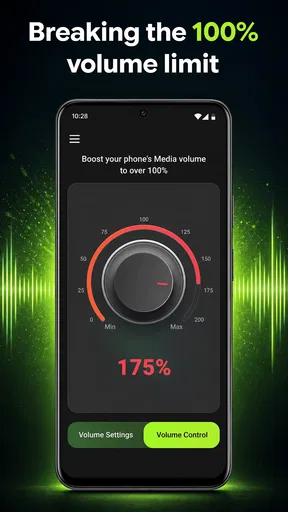
- Boosts quiet audio beyond the phone’s standard volume limit.
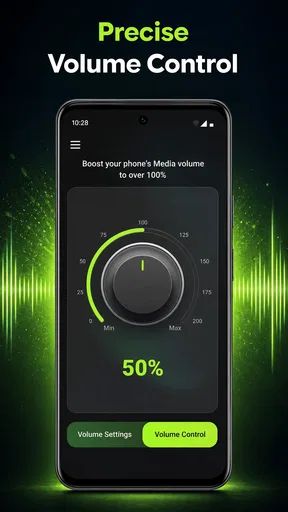
- Simple controls make volume adjustments quick and easy.
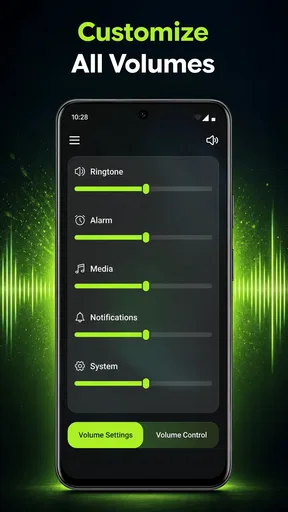
- Includes separate presets for music
- videos
- calls
- and notifications.
- Works with headphones
- speakers
- and many Bluetooth audio devices.
- Compact interface uses little storage and battery during normal use.
Cons
- Excessive amplification can cause distortion and unpleasant sound clipping.
- May reduce audio quality when boosting bass-heavy tracks or podcasts.
- Results vary depending on the phone
- Android version
- and connected device.
- Some features may require ads or in-app purchases to unlock.
- High volume levels can damage hearing or connected speakers if misused.
FAQs for Volume Booster – Audio Center
What is Volume Booster – Audio Center and what does it do?
Volume Booster – Audio Center is designed to help users increase and manage the loudness of compatible audio on their mobile device. It may provide a simple boost for music, videos, games, podcasts, notifications, or other media, depending on the device and operating system. The app generally works through software-based audio enhancement rather than physically improving the phone’s speakers, so the final result can vary between devices and headphones.
Can Volume Booster – Audio Center make my phone louder than its standard volume limit?
The app may increase perceived loudness beyond the normal system setting, but its effectiveness depends on the phone, operating system, media player, and connected audio equipment. Software amplification cannot overcome every hardware limitation. At higher levels, sound may become distorted, harsh, or uncomfortable, particularly through small built-in speakers. It is best to increase the volume gradually and reduce it immediately if the audio quality worsens.
Is Volume Booster – Audio Center safe for my phone and hearing?
Using a volume booster responsibly is generally important because excessive amplification can strain your phone’s speaker and may pose a risk to your hearing, especially when using earbuds or headphones. Avoid leaving the app at maximum output for long periods, and be careful when switching between speakers and headphones. If the device becomes unusually hot, the speaker sounds damaged, or audio crackles persistently, stop using the boost and return to normal volume.
Does Volume Booster – Audio Center work with music, videos, games, and headphones?
Compatibility can differ depending on how the app handles audio and which applications are open. It may work best with media played through supported players, while some streaming services, calls, protected content, or system sounds may not respond fully. Headphones, Bluetooth speakers, and wired accessories can also produce different results. Testing the booster with a short piece of audio is recommended before using it during extended listening.
Does Volume Booster – Audio Center require special permissions or include advertisements and purchases?
Before installing, users should review the app’s current store listing for permissions, advertising details, subscriptions, and optional in-app purchases, since these can change with updates. A volume utility may request access related to audio control or display features, but permissions should be relevant to its advertised functions. Avoid granting access that seems unnecessary, and check the developer’s privacy policy to understand how usage information may be collected or shared.


